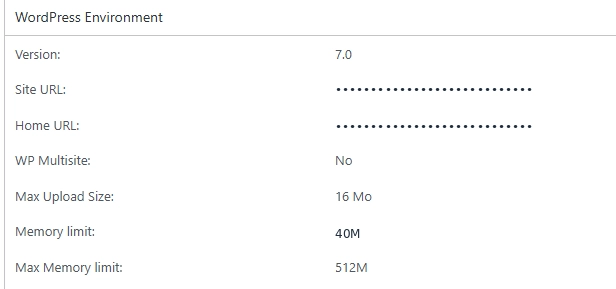
If you have ever encountered the infamous WordPress “critical error” or a frustrating blank screen (the WordPress white screen of death), your site likely ran out of resources. By default, the internal memory limit wordpress sets is restricted to just 40 MB (and 64 MB for the admin area). By today’s web standards, that is remarkably low.
A common mistake is trying to resolve this issue solely at the server level. Even if you modify your general configuration to increase memory limit php values inside your php.ini file, WordPress’s default memory won’t change automatically. WordPress applies its own software restriction on top of your server’s limits.
Quick backstory: A technical support specialist for the popular translation plugin WPML shared this trick with me during a complex troubleshooting session. It has saved me from countless headaches ever since!
The Problem: Why php.ini Alone Isn’t Enough
For many developers, the first instinct when facing a memory error is to track down the php ini location to modify the memory_limit directive or use a function like php iniset (ini_set()).
While this is an excellent first step to configure the overall global memory available on your hosting environment, WordPress will ignore this value if it exceeds its default internal ceiling of 40 MB. For WordPress to fully leverage the resources you have allocated, you must explicitly give it permission within its own configuration files.
🤓 For the Geeks: What Does the WordPress Core Code Say?
If we dive into the core of WordPress (specifically within the default-constants.php file), we can see exactly how the system restricts itself. The code follows a strict logic:
PHP
if ( ! defined( 'WP_MEMORY_LIMIT' ) ) {
    if ( false === wp_is_ini_value_changeable( 'memory_limit' ) ) {
        define( 'WP_MEMORY_LIMIT', $current_limit );
    } elseif ( is_multisite() ) {
        define( 'WP_MEMORY_LIMIT', '64M' );
    } else {
        define( 'WP_MEMORY_LIMIT', '40M' );
    }
}- The Automatic Cap: If you don’t define anything, WordPress forces the limit down to 40 MB (or 64 MB for a Multisite network).
- The Backend Behaviour: For the admin dashboard (WP_MAX_MEMORY_LIMIT), WordPress is slightly more generous, defaulting to 256 MB. However, as soon as you start using resource-heavy plugins, this limit is quickly maxed out.
- The Override: Further down in the code, WordPress compares its limit to the server’s limit. By adding our custom lines of code into the wp-config.php file, we bypass this default behaviour and execute an ini_set(‘memory_limit’) to force the server to match our desired value!
The Solution: The Code to Insert into wp-config.php
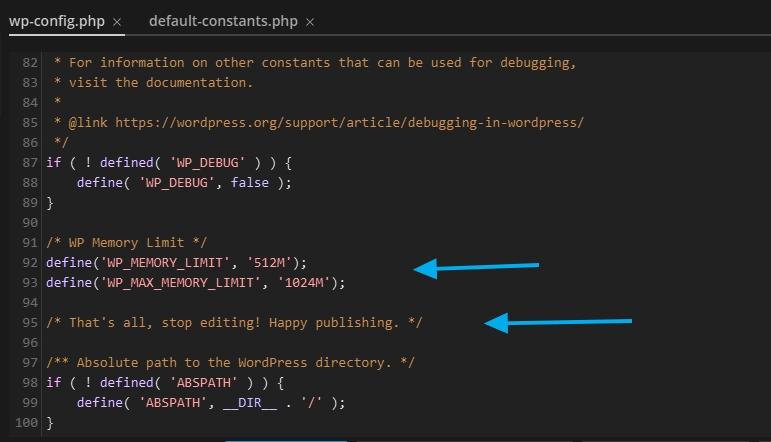
To properly perform a change memory limit php override for WordPress, open your wp-config.php file (located at the root directory of your site).
Look for the following line near the bottom of the file:
/* That’s all, stop editing! Happy publishing. */ (or its French equivalent: /* C’est tout, ne touchez plus à rien ! Bon blogue. */).
Add this snippet of code exactly before that sentence:
PHP
/* WP Memory Limit */
define('WP_MEMORY_LIMIT', '512M');
define('WP_MAX_MEMORY_LIMIT', '1024M');
What Memory Values Should You Choose for Your Site?

You shouldn’t just set a massive max memory limit php value for the sake of it. Setting it too high poses a real risk of overloading your server. If there is a code bug, an infinite loop, or if a malicious script manages to infiltrate your site, it could consume all available server RAM and crash your entire website (along with any other sites sharing the server if you are on shared hosting).
Here is how to target the right set memory limit php structure based on your actual needs:
| Site Type | Recommended Memory | Why? |
| Landing Page | 128 MB | Ideal for simple layouts with very few plugins. |
| Brochure / Corporate Site | 256 MB | Recommended for running a modern theme and basic contact forms. |
| Online Store (WooCommerce) | 512 MB | A woocommerce memory limit of 512 MB is essential to handle shopping carts, checkouts, and payment gateways smoothly. |
| Complex Platforms (Membership, E-learning, Multilingual) | 512 MB to 1024 MB | Sites utilizing heavy tools or translation suites like WPML require a massive amount of simultaneous database calculations. |
💡 A Quick Note on Elementor and Modern Hosts: You might occasionally notice on a brand-new site that Elementor already displays a 512 MB limit before you’ve even touched the code. This happens because WordPress’s core code includes an intelligent fallback rule: if your hosting provider is modern and already provides an excellent php.ini configuration at 512 MB, WordPress may choose to automatically align its interface with the server’s maximum. However, manually configuring your wp-config.php file remains best practice to ensure this limit remains locked in place, regardless of future core updates or server migrations.
(While you are at it, keep an eye on your php time limit and the php max input vars wordpress directive to prevent your page builder scripts from timing out mid-edit!)
How to Modify This File Without FTP or SSH Access
Option 1: Via Your Hosting Account’s File Manager
- Log into your customer dashboard with your hosting provider (cPanel, o2switch, PlanetHoster, Bluehost, etc.).
- Click on File Manager.
- Navigate to the root folder of your website (usually public_html or www).
- Find the wp-config.php file, right-click it, and choose Edit.
Option 2: Directly Inside Your WordPress Dashboard (No Server Access Required)
If you only have administrator access to the WordPress dashboard:
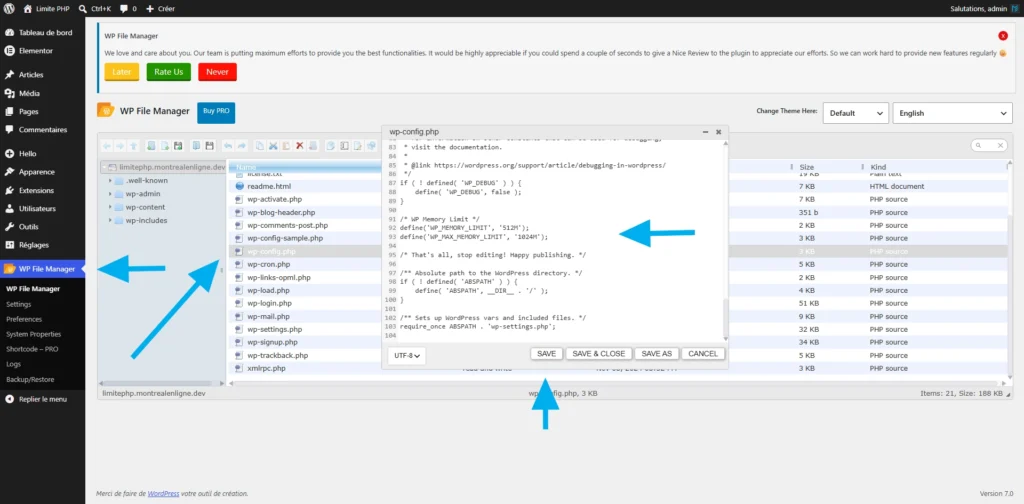
- Install the free plugin WP File Manager.
- Open the plugin from your WordPress sidebar menu to view your site’s file directory.
- Find the wp-config.php file, right-click it, and select Code Editor.
- Paste the code snippet provided above, then click save.
- Important: For security reasons, deactivate and delete the WP File Manager plugin immediately after you’re done so you don’t leave an open back door to your core system files.
The Benefits of Optimizing Your PHP Memory Limit
By making this quick adjustment, you eliminate the vast majority of unexplained site crashes. You will instantly benefit from:
- The complete disappearance of Fatal Error: Allowed Memory Size Exhausted messages.
- A much smoother and faster admin dashboard, especially when editing complex layouts with Elementor or Divi.
- Backup processes, migrations, and translation tools that finally complete their tasks without freezing halfway through.
Taking five minutes to properly configure your php memory limit wordpress settings is a fantastic investment in the long-term stability and performance of your web platform!